For years, SAP was predictable to test. You had SAP GUI, transaction codes, and screens that barely changed. A script written against a transaction lasted.
Fiori ended that. SAP moved the interface into the browser, so the screen stopped being a fixed target. It now renders across browsers, screen sizes, devices, and roles, and shifts whenever SAP ships a UX update or your team changes a configuration.
Here is what teams learn the hard way. When SAP updates Fiori, it updates the framework, not your business flows. SAP says so directly: end-to-end responsibility for upgrades stays with the customer. SAP tests that the platform works, not that your procure-to-pay process still works in your environment. That part is yours, and the upgrade testing post covers how a change breaks a flow.
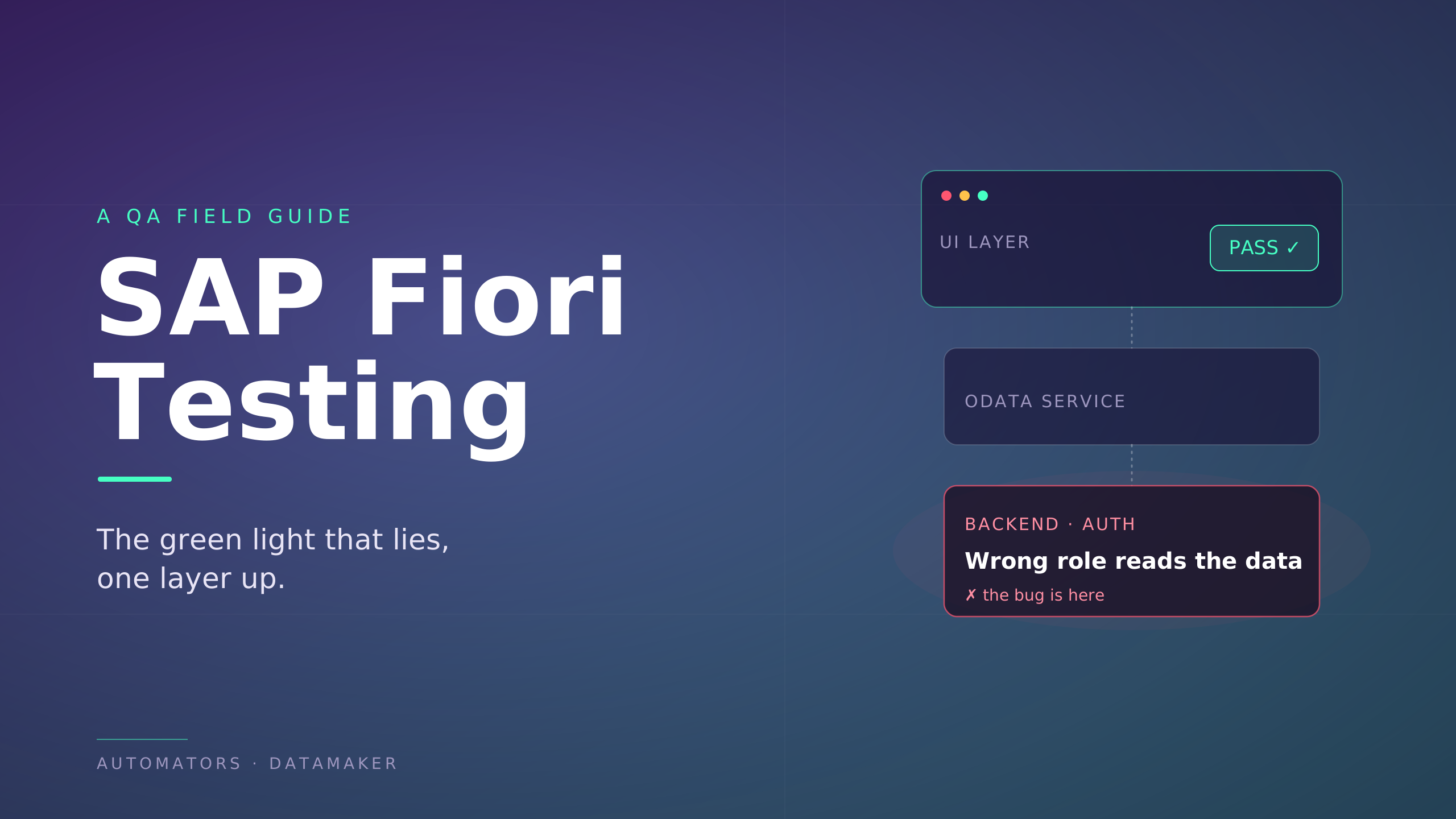
This guide is the procedure for testing the Fiori layer itself: the manual pass first, then how to automate it. Before the steps, four short sections on what you are testing and why, so the procedure has somewhere to land.
What SAP Fiori testing actually is
Strip away the definitions and Fiori testing is one thing: confirming that a user can complete a real business task through a browser-based SAP app, under the conditions they actually work in.
That last clause is the whole difference. "Under the conditions they actually work in" means their role, their device, their browser, and live data, not an admin login on a clean dataset.
It is not a new category of testing bolted onto SAP. It is functional and end-to-end testing forced to account for a UI that behaves like a web application: one that renders differently per user, loads data after the page paints, and changes more often than the backend underneath it.
So when someone asks what Fiori testing is, the honest answer is not "testing SAP's modern UI." It is making sure the move to that UI did not quietly break the work people do through it.
Why SAP GUI testing is no longer enough
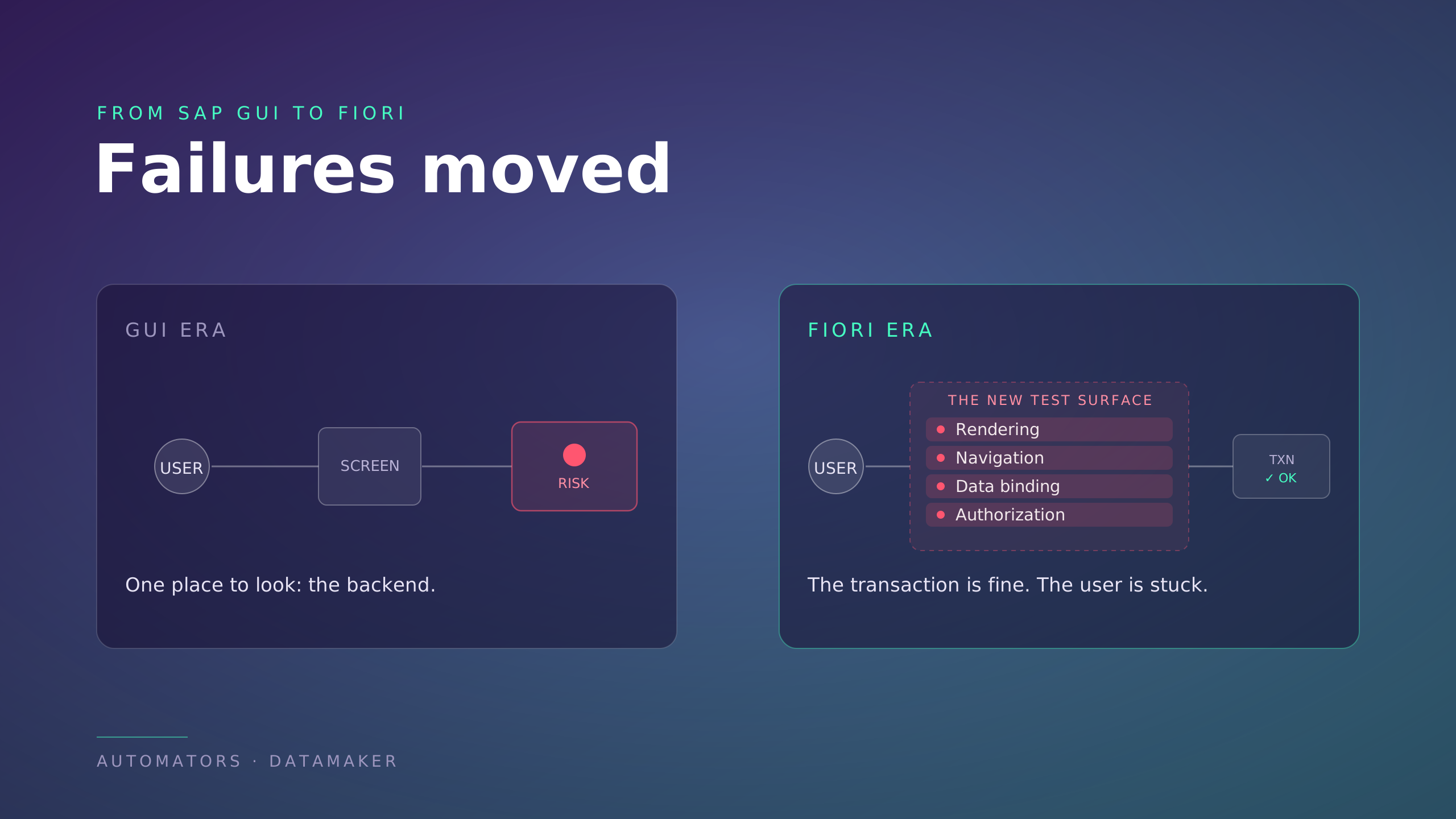
For most of SAP's history, testing meant validating transaction logic. The screen was a stable shell around a transaction code, and if the transaction processed correctly, the screen was rarely the risk. Failures lived in the backend, and that is where testers looked.
Fiori moved the risk. The same business logic now reaches the user through a browser app that SAP updates on its own schedule, renders across devices, and gates behind roles. The transaction can still post perfectly while the user never gets that far, because the screen failed to submit, hid the action, or never loaded the field.
So failures relocated. They moved out of the transaction and into the space between the user and the transaction: rendering, navigation, data binding, authorization, and responsiveness. None of those existed as test targets in a GUI world. Every one of them can stop a business task now.
This is why GUI testing skills do not simply transfer. A tester validating transaction logic is checking the right thing in the wrong place. The logic is no longer where Fiori breaks.
The unique challenges of Fiori testing
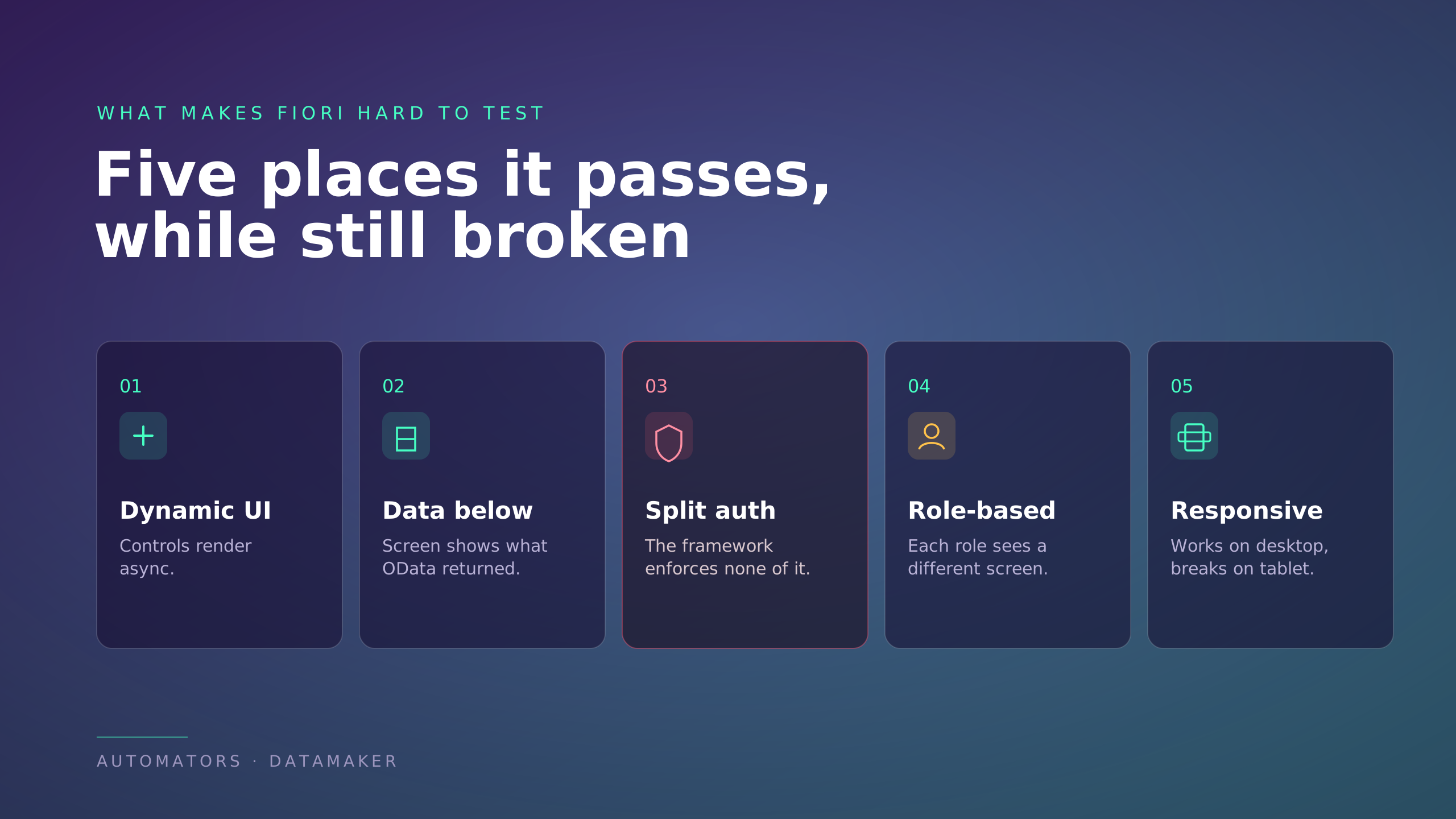
Five properties make Fiori genuinely harder to test than anything in the GUI era. Each one is a place where a test can pass while the app is broken.
The UI is dynamic. UI5 renders controls asynchronously and builds the page after data arrives, so elements are not reliably present the moment the screen appears. A test that checks too early sees an empty field. A test that targets a hardcoded element sees one that moved.
The data sits one layer down. The screen is bound to OData service responses, so a clean-looking screen can be displaying a wrong or stale value the service returned. The UI has no way to flag it.
Authorization is split and silent. Access is enforced across the frontend gateway and the backend service, and SAP's own SAPUI5 documentation is explicit that the framework handles none of it: authentication, session handling, authorization, and encryption are all server-side concerns. A user can be over-permissioned with nothing on screen to show it.
Rendering is role-based. The same app is not the same screen for every user. Role, company code, region, and device each change what renders, so one passing login proves very little about the rest.
Layouts are responsive. A flow that works on a desktop can collapse on the tablet a warehouse user actually holds, and that is a broken process for those users even though nothing errored.
Hold these five in mind, because the manual pass below is built to catch each one.
The framework: six checks down the stack
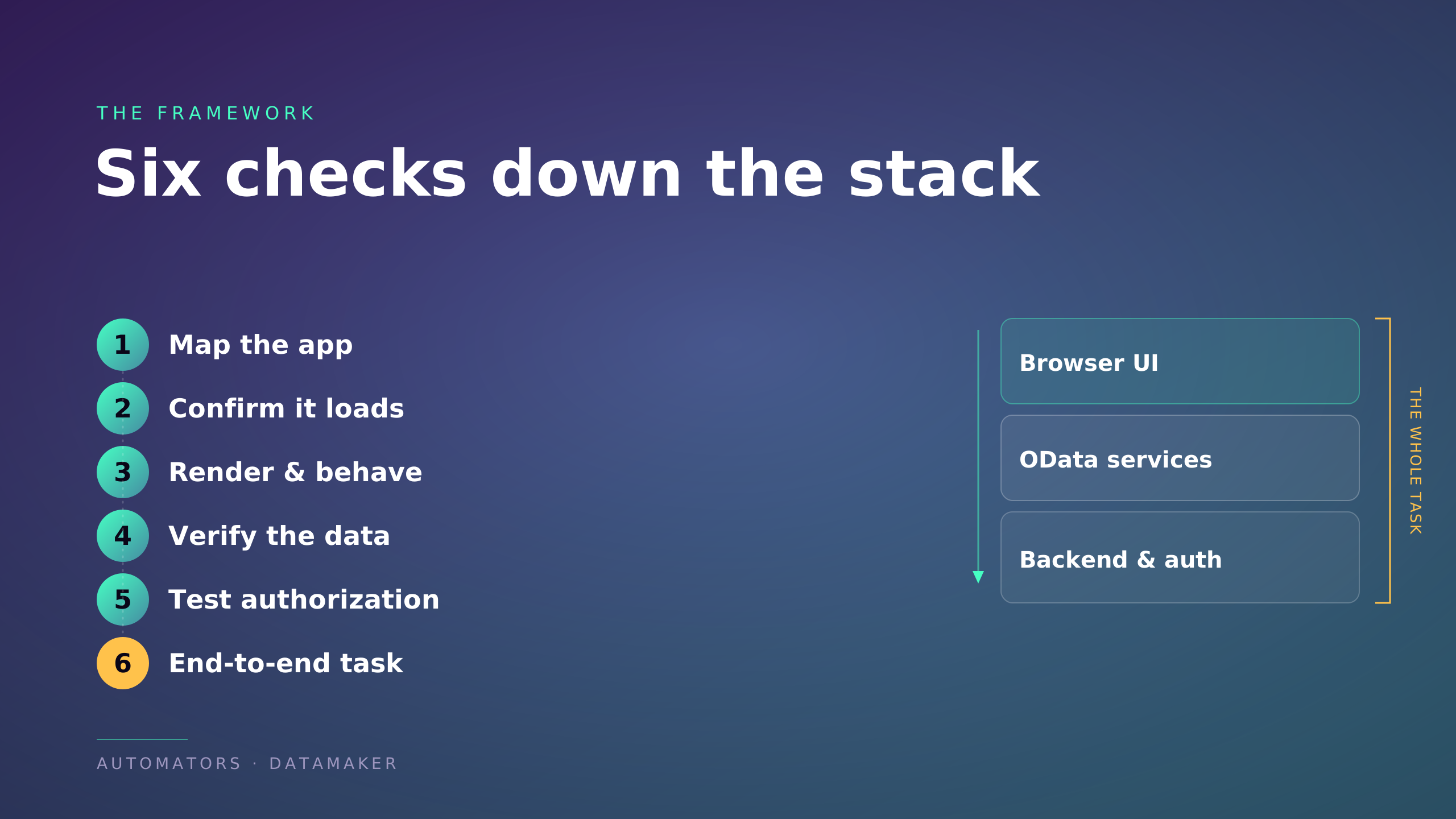
A Fiori app is a stack. The browser UI sits on OData services, which sit on backend logic and authorization. Effective testing does not poke at the top of that stack and call it done. It works down through it, then back up to the whole task.
That turns into six steps, and the rest of this guide is those six steps in order:
- Map the app, so you know which services, roles, and devices you are testing.
- Confirm it loads, which tests the service and authorization registration underneath the tile.
- Test that the UI renders and behaves, the visible layer.
- Verify the data, the OData response behind the screen.
- Test authorization, across roles and the negative cases.
- Run the end-to-end business task, the whole stack as the user experiences it.
The first half of the guide runs this pass by hand. The second half turns it into automated tests that survive every release. The manual version comes first.
Part 1: The manual Fiori test pass
The pass walks the six steps in order, top of the stack down to the whole task. One discipline holds it together: never let the screen be the last word. At every step, the thing you are really testing sits a layer below what you can see.
Step 1: Map the app before you test a single click
You cannot test a Fiori app you have not mapped. Skipping this is why so much Fiori testing is busywork against the wrong target.
Before testing, gather three things:
-
The OData services the app depends on. Open the SAP Fiori Apps Reference Library, search the app, and read the Implementation Information for the required services. For a live system, transaction /UI2/FLPCA (Launchpad Content Aggregator) lists every OData service an app consumes for a given role.
- What you will have: a short list of the backend services that actually carry this app's data.
-
The roles the app needs. A Fiori app is reached through catalogs and groups assigned to a business role. Note which roles are supposed to see it, and just as important, which roles are not.
-
The device and browser matrix. Fiori is responsive and role-based, so "it works" is incomplete until you know on what. List the browsers and screen sizes your real users are on.
You now know what to watch: the services that can fail silently, the roles that change the screen, and the surfaces it has to render on.
Step 2: Confirm the app actually loads
This sounds trivial. It is where a large share of Fiori failures actually live, and they are almost never UI bugs.
Launch the app from the Launchpad. Watch for one of these:
- The tile is missing entirely. The role does not have the catalog or group assigned.
- The tile is there, but the app throws a 403 or 500, or "component failed to load." This is an OData service that is inactive, unregistered, or not authorized. It is a configuration gap, not a defect in the app.
When it fails here, do not file a UI bug. Trace the real cause:
- /n/IWFND/MAINT_SERVICE shows whether the required OData service is active and registered.
- /n/IWFND/ERROR_LOG (the Gateway error log) names the service and the failure.
- SU53 after the failure, or an STAUTHTRACE trace during it, shows whether the user is missing an authorization. A frequent culprit is the S_SERVICE object, which has to cover both the frontend service (IWSG) and the backend service (IWSV). Many teams authorize one and miss the other, so the tile shows but the app dies.
The lesson the series keeps returning to applies here too. A failure to load is a signal, and it points down, not at the screen.
Step 3: Test that the UI renders and behaves, not just that it appears
Now you test the visible layer, but with the right suspicion. The danger in Fiori is the change that breaks nothing technically and breaks the task completely.
Run the app and check the things that move silently between releases:
- Async loading completes. Fiori loads data after the screen paints. A field or table that is empty for a second is normal. One that stays empty because the call never returned is a defect hiding as a slow render.
- A required field appeared. A new mandatory field after an update blocks submission for users who never had to fill it.
- A button moved. An action pushed behind a menu or a second navigation layer is still "present" and effectively gone for the user who cannot find it.
- Validation timing or defaults changed. A field that now validates differently, or a default that changed, will pass a glance and fail a real entry.
- Responsive behavior holds. Re-run on the smaller screens from your Step 1 matrix. A layout that collapses on a tablet is a broken flow for the users on tablets.
None of these throw an error. Every one of them can stop a user from finishing the task. That is the gap manual review exists to catch.
Step 4: Verify the data, not just the screen
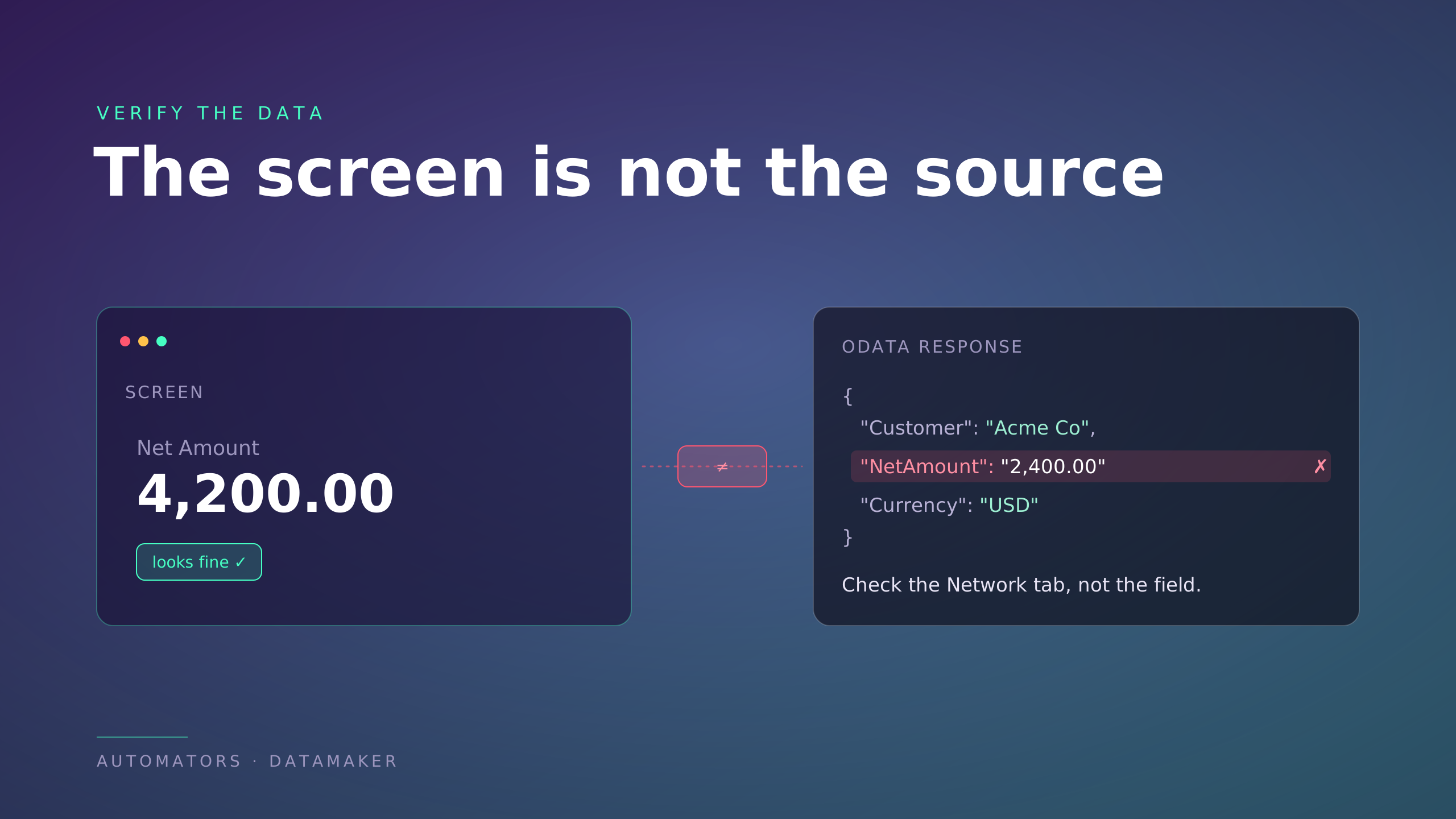
This is the core of the whole post. The screen showing a value is not proof the value is correct. Fiori binds the UI to OData responses, and a green screen over a wrong response is the most expensive kind of pass.
For the key fields on the screen, reconcile what the UI displays against the source:
- Pick a record and compare the displayed values to the backend (the underlying table, CDS view, or the OData response itself).
- Use the browser developer tools, Network tab, to see the actual OData call the app made and what it returned. This is the single most useful habit in Fiori testing, because it shows you the data the screen is built from, not the data the screen claims.
- Watch for the quiet failure: the app pulled a real value, formatted it cleanly, and it is the wrong field or a stale figure. The UI has no way to know. Only your reconciliation does.
If you test only what the screen says, you are trusting the UI to tell you whether the UI is right. It cannot.
Step 5: Test authorization for real, including the negative cases
Authorization is where Fiori quietly leaks, and it is the step most manual passes shortchange because they run as one comfortable user.
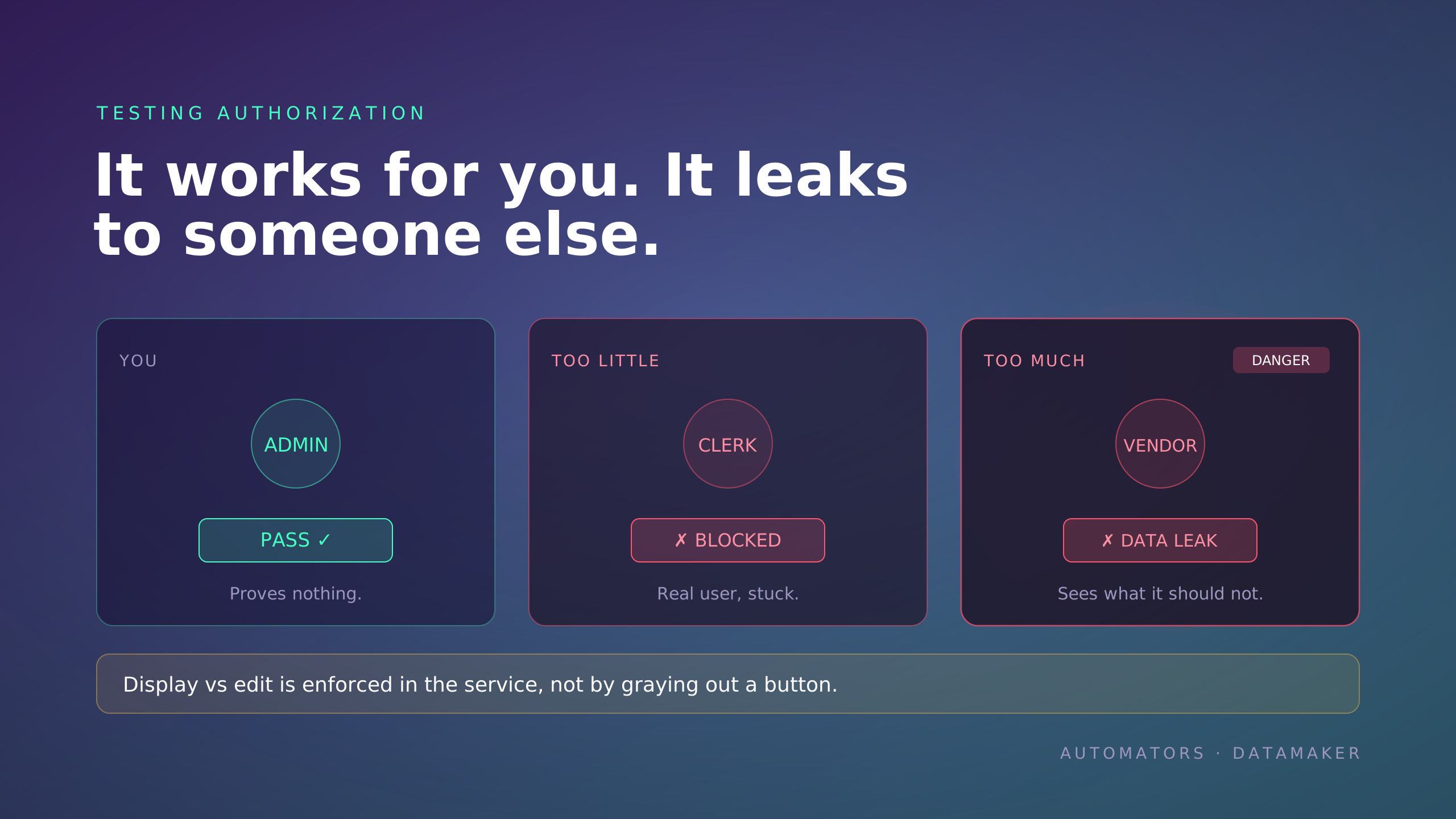
Two failures matter here, and they pull in opposite directions:
- Too little access. A real business persona cannot reach the app or an action they need. You will never see this testing as an admin, because your user can do everything.
- Too much access. A user can see or edit data they should not. This is the dangerous one, and it is invisible from a single login.
So test as the personas, not as yourself:
- Log in as each real business role that uses the app, using the role list from Step 1. The same app renders differently by role, company code, and region. A test user seeing a working screen tells you nothing about what a real user sees.
- Run the negative case deliberately. Log in as a role that should be blocked and confirm it is blocked, at the data level, not just the tile level.
- Check display-versus-edit. A display-only user must not be able to change data. Critically, this has to be enforced in the backend, in the OData service, not hidden by graying out a button in the UI. A control that is merely hidden can often still be reached. Confirm the server refuses the write, not just that the button is dim.
This is the green light that lies in its sharpest form. An app that works for you, and exposes data to someone it should not, passes every test you run as yourself.
Step 6: Run the end-to-end business task
The final manual step zooms back out. Individual layers can each pass while the task as a whole fails, so you finish by completing the actual job a user came to do.
Pick the real business scenario the app serves and run it through to the end. Create the purchase order and confirm it submits. Trigger the approval and confirm it fires. Post the document and confirm it lands.
This overlaps with end-to-end testing as a discipline, but here the lens is narrow: did the Fiori layer let the user complete the task.
Watch the seams between steps, because that is where Fiori breaks in ways the backend never sees. The purchase order logic can work perfectly while the screen fails to submit the request.
The inventory update can post while the UI fails to trigger the next workflow step. From the system's view, no error. From the business's view, the process stopped.
If the task completes, end to end, as the real persona, on the real device, with the data verified, you have tested the app. Not before.
Part 2: Making it repeatable
Running that pass by hand once is valuable. Running it by hand every release is unsustainable, because Fiori changes constantly.
Each SAP Cloud ERP Private release alone introduces roughly 300 new Fiori apps, on top of every UX update to the ones you already use. This is where automation earns its place, and where most Fiori automation projects fail.
Step 7: Understand why your old scripts keep breaking
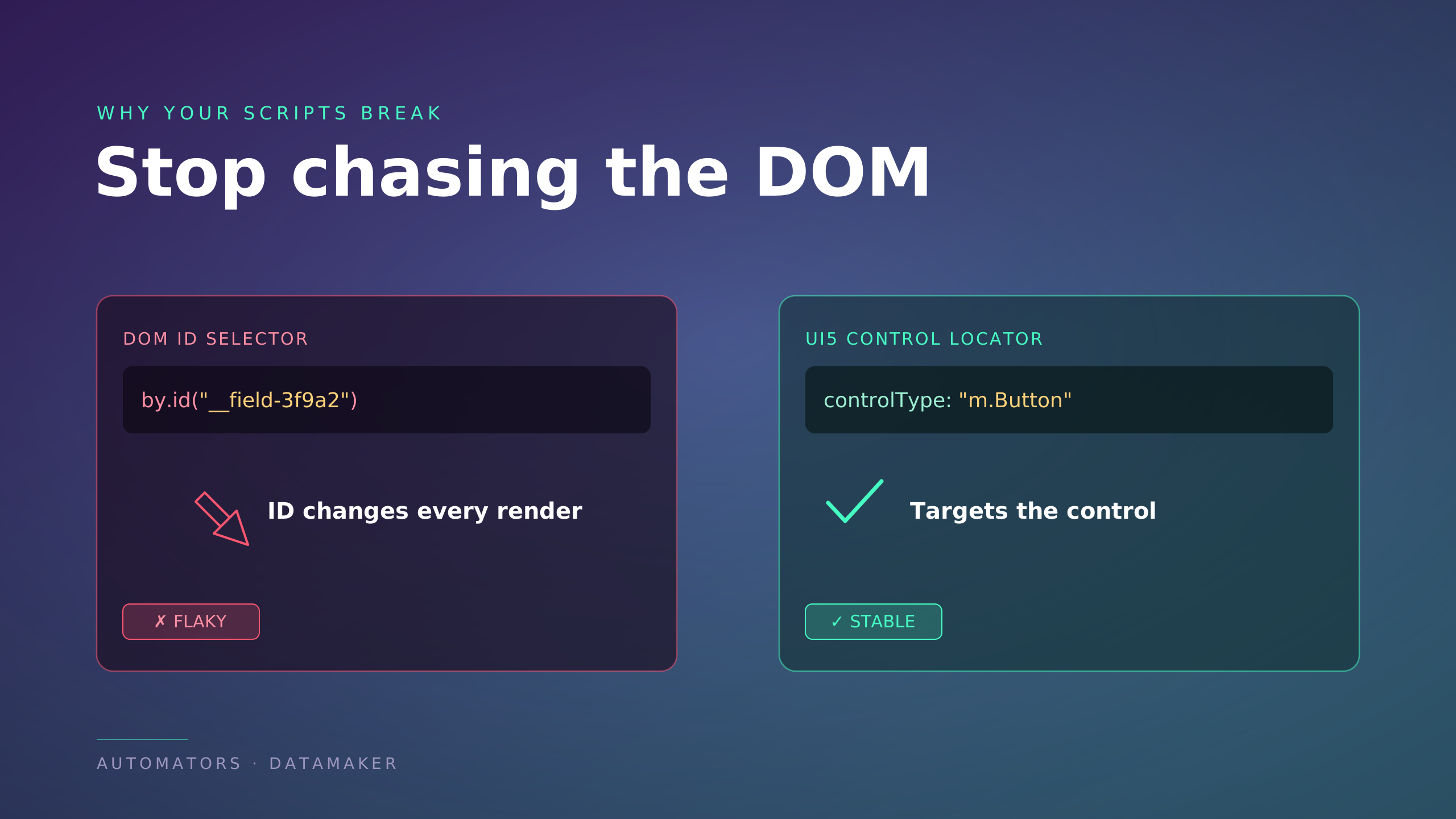
If you brought SAP GUI testing habits to Fiori, they broke, and the reason is structural, not a skill gap.
GUI screens were static, so record-and-playback scripts and fixed element locators held up. Fiori is the opposite. UI5 renders controls asynchronously, generates element IDs dynamically, and reuses components across apps.
A script that waits a fixed number of seconds, or targets a raw DOM element by a generated ID, will pass today and shatter on the next render or the next update.
So the fix is not "automate harder." It is to stop testing Fiori the way you tested GUI. The tools that survive are the ones that understand UI5 controls instead of chasing DOM elements.
Step 8: Choose a tool that matches the layer you tested
Map the tool to the manual step it makes repeatable, rather than buying one tool and forcing everything through it. Each of these is honest about what it is good at.
- QUnit tests units in isolation, such as a formatter or a single function. This is developer-side and narrow, useful but not a substitute for testing the app.
- OPA5 (One Page Acceptance) tests UI interaction inside the app's own runtime. It is fast and good for "does the dialog open, does the list filter." Its documented weakness is true end-to-end testing, where authentication and fragile test data trip it up. Good for Step 3, weak for Step 6.
- wdi5 is the current SAP-aligned choice for end-to-end. It is a WebdriverIO plugin that drives a real browser but targets native UI5 controls rather than DOM selectors, which is precisely what keeps it stable through async rendering. Note that UIVeri5, the older framework, was deprecated in early 2022. Do not start new work on it.
- Tricentis Tosca and Worksoft Certify are the commercial, model-based options. They handle dynamic Fiori structures with low-code or scriptless approaches and span GUI, Fiori, and API in one flow, which suits teams without a JavaScript bench. If you go this route, enable SAP GUI scripting only in your Dev and QA systems, never in production, to avoid an automated run firing against live data.
There is no single right answer. A QA-led team often leans toward a model-based tool; a developer-led team toward wdi5. Match it to who maintains the tests.
Step 9: Turn the manual pass into automated tests
You do not design automated Fiori tests from scratch. You encode the manual pass you already ran.
A practical path:
- Use the UI5 Test Recorder, built into the framework. Right-click a control and it generates a stable control locator, the kind wdi5 and OPA5 use. This is how you get away from the brittle DOM IDs that broke your old scripts.
- Automate the layers in the order you tested them: load, render, data, authorization, end-to-end. The negative authorization checks from Step 5 are worth automating first, because they are the ones humans skip under deadline.
- Wire the suite into your CI pipeline so it runs on every change, not just before go-live.
One thing decides whether any of this is trustworthy: the data underneath. An automated end-to-end test is only as honest as the data flowing through the OData services it exercises. If that data is stale, missing, or wrong, the test passes against garbage and tells you nothing.
This is OPA5's documented test-data weakness made general.
Controlled, repeatable test data is what lets the same test mean the same thing every run, which is where a tool like DataMaker fits: it generates synthetic SAP test data so the records your Fiori tests read and write are predictable instead of whatever happened to be in the system that day.
The green light, one layer up
Fiori testing is UI-layer testing. That much is true. But a Fiori app is a thin surface over OData services and backend authorization, and the SAPUI5 framework enforces none of the security or correctness you might assume it does.
Test only the visible layer and you are trusting the screen to tell you whether the screen is right.
The screen rendering is not the test passing. The button working is not the task completing. The tile appearing is not the data being correct, and your own login working is not authorization being enforced.
Run the manual pass first, layer by layer, until a real persona can finish a real task with verified data. Then automate that pass with tools that understand UI5 instead of fighting it.
That is the difference between testing a Fiori app and watching it light up green.