TL;DR
- On demand, in a Tosca run, means three things: the right records exist in SAP, the test can find them when it starts, and no other test has already used them.
- Tosca handles the second and third itself. Tosca Cloud does it with data sets and {TDM[...]} expressions, and Tosca on-premises does it with Test Data Service.
- The first condition is where the manual work lives: creating valid SAP records and getting their keys into Tosca before anyone presses run.
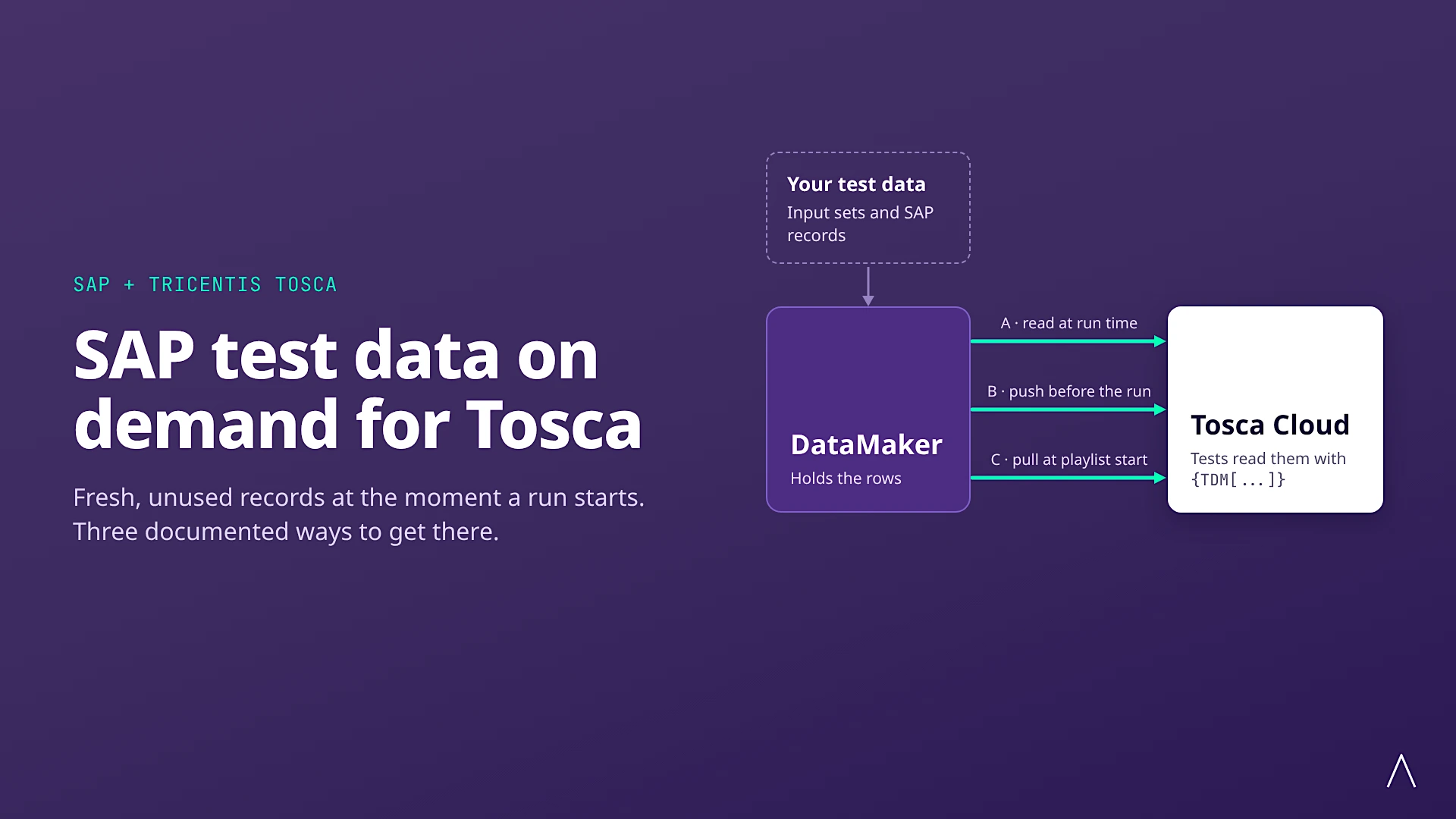
- We document three ways to feed Tosca Cloud: a test step reads frozen rows at run time, DataMaker pushes rows into Tosca test data, or a setup test case asks DataMaker to refresh that data at the start of a playlist.
- DataMaker cannot write into Tosca on-premises Test Data Service. Pushing works with Tosca Cloud only, so the on-premises section sticks to Tosca's own modules.
Tricentis' own documentation describes finding the right test data as "the most time-consuming and resource-intensive challenge faced by testers today." In an SAP programme the problem tends to get worse after the first green run.
A sales order test needs a customer, a material, and a plant that exist and agree with each other, and Monday's run uses some of them up. By Wednesday the nightly regression is failing because of the data, while SAP itself is fine.
This guide is about closing that gap: the data a Tosca test needs should exist, be findable, and be unused at the moment the test starts, without anyone preparing it by hand.
It covers what Tosca already does natively, where that stops, and how our Tosca connection fills the space in between. Each step points to the documentation behind it.
What "on demand" has to mean in a Tosca run
Before automating anything, it helps to be exact about the target. A test has data on demand when three conditions hold at the moment it starts.
The records exist in SAP and agree with each other
The customer the order is for must exist, be extended to the right sales area, and accept the material being ordered. None of this is a Tosca concern. It is a property of the SAP client the test runs against.
The test can find them at run time
Tosca Cloud steps reference stored test data with an expression of the form {TDM[data set][subset][column]}, where the subset is optional. By default a test case takes one row from the same data source, and subsets or the Test data - Find and provide item module give it more. On-premises, the TestData - Find & provide item module searches Test Data Service by query or filter and holds the result under an alias for the duration of the test case.
No other test has already used them
Tosca Cloud marks a row as used when a test consumes it and, by default, blocks it from being used again. Test Data Service locks an item once a test step retrieves it, so no other step can take the same one. Tricentis also warns that exclusive access can cause failures in distributed execution, and recommends the Expert module's ReadOnly option for data that many tests share, such as a list of valid payment cards.
Tosca covers the second and third conditions well. The first is where manual preparation lives: someone creates records in SAP, copies the keys into a sheet, uploads it, and repeats this whenever the rows run out. That loop is what the rest of this guide automates.
Step 1: Separate what the business decides from what can be generated
Not every value in a test row should be invented. A business analyst usually knows which company code, sales organisation and order type a scenario is about. Names, addresses and quantities can be generated.
We model this as an input set: an editable sheet whose columns come from a blank sheet, from a template's fields, or from an uploaded Excel or CSV file. You can mark a field as Supplied by the business, and a cell left blank in such a field stays blank in the frozen version. Pressing Generate data asks DataMaker's AI agent to add rows. It fills every column except fields of the Derived and Mapped types, which DataMaker computes. A sheet holds at most 500 rows.
Rows are checked against the target system, whether they were typed or generated. Nothing reaches a test until someone presses Create dataset, which freezes a version. Per the REST reference, freezing checks every row against your target system before it generates the version's dataset.
The version matters later. Every route below reads a specific version or follows the latest one, so a failing run can be traced back to the exact rows someone signed off.
Step 2: Create prerequisite records in SAP through OData
Some tests need records that already exist when they start: a business partner to sell to, a material with stock. Creating those inside the test itself mixes two failures together. If setup breaks, the process you meant to test reports red.
A cleaner arrangement creates prerequisites through SAP's OData services before the test runs. Our SAP OData guide sets out the order:
- List the integration's services and inspect the chosen service's OData metadata.
- Review the entity's keys, required properties, navigation relationships and field constraints.
- Create or select the endpoint and template for that entity, and generate a small sample.
- Validate the sample before writing anything.
Two details from that guide catch people out. The SAP export tool takes one record object per call, so an array is not split for you. And SAP writes may need a CSRF token with matching session cookies, which the connector's own authentication flow handles; a validation error is a data problem, and refreshing authentication will not fix it. Check each created entity and record its returned key, because that key is what the Tosca test will need.
Once the workflow works on a sandbox, save it as a Python scenario, test that a rerun does not duplicate records, and trigger it from CI with POST /scenarios/execute. The documented CI example polls the job and only treats a run as successful when its state is completed and its error is empty, because a completed queue job can still carry a failed script.
Step 3: Choose how Tosca receives the data
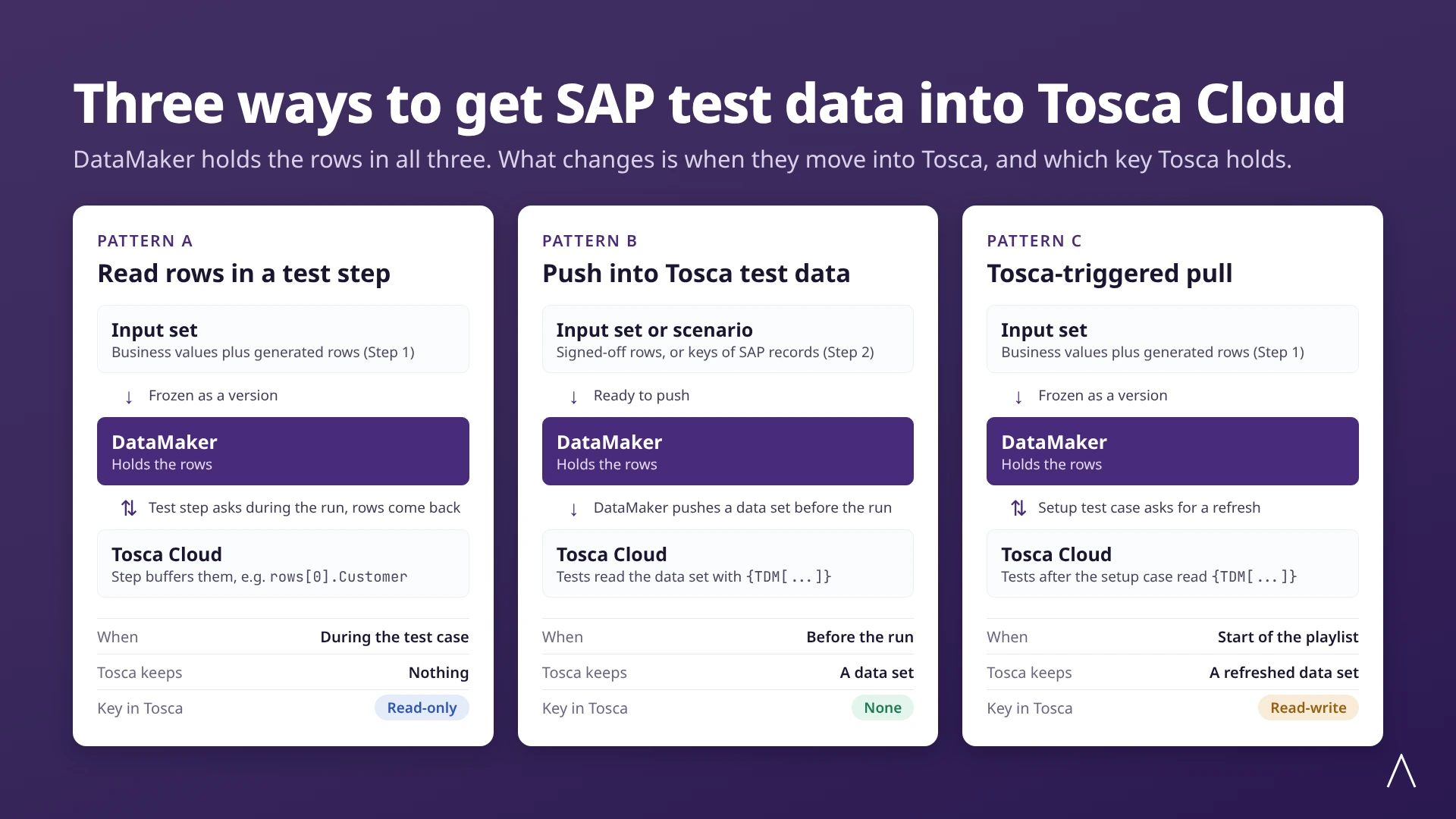
DataMaker's Tosca connection supports Tosca Cloud with OAuth2 client credentials and Tosca on-premises with Basic authentication. For getting rows into a Tosca Cloud test, we document three patterns.
One naming note before the patterns. Tosca calls its stored test data a data set. In DataMaker, a dataset is a stored block of rows, such as the one created when you freeze an input set version.
| Pattern | When DataMaker is asked | What Tosca keeps | DataMaker key stored in Tosca | Suits |
| Read rows in a test step | During the test case | Nothing; the step buffers the response | Read-only | Rows the business signed off that should not be copied |
| Push into Tosca test data | Before the run, by a person or a scenario | A Tosca Cloud data set | None | Regression data and tests that consume rows |
| Tosca-triggered pull | Once, at the start of the playlist | A refreshed Tosca Cloud data set | Read-write | Unattended nightly runs |
Pattern A: read rows in a test step
Here the rows never leave DataMaker until the test asks for them. Open the input set's Tosca panel and choose Set up in Tosca → Read rows in a test step. DataMaker builds an OpenAPI specification for one test case: the request that fetches its rows, with the endpoint and test case filled in. You pin a version or follow the latest.
In Tosca Cloud, create an API message from an API specification. Tosca Cloud accepts OpenAPI 3.x, among other formats, and builds the request and response modules from it. The specification URL needs no key and expires after seven days. It describes the request only. Row values and keys stay out of it.
After importing, set the X-API-Key header on the request module to a read-only, project-scoped DataMaker key. Treat that key as exposed from then on, because Tosca stores request headers in clear text and shows them to anyone who can read the space. Rotate it on a schedule.
Then buffer the columns the test needs. Rows sit under rows, counted from zero, so rows[0].Customer is the first row's customer. The specification requests rows by the test case's Tosca id and matches it exactly, so relinking a test case to a different Tosca test case after freezing returns nothing.
Pattern B: push rows into Tosca Cloud test data
Here DataMaker writes a Tosca Cloud data set, and test steps read it the way they read any Tosca test data, for example {TDM[Orders][Material]}. No DataMaker key is stored in Tosca. The source can be a locked set, an input set version, a ready dataset, or rows a scenario produces. An input set with test cases gets one subset per test case, so each test reads only its own rows through {TDM[Orders][][Material]}.
The setting that matters most is what happens when the data set already exists. Pick it by how your tests use the rows:
- Tests that use rows up, such as one that creates and posts an order each run, want append. Each run adds its rows and leaves rows Tosca has marked as used alone. One append adds up to 1,000 rows, and pushing the same rows twice adds them twice.
- Data every run reads again wants overwrite. It replaces the rows, keeps the subsets, and clears the used marks, which is usually right for regression data.
- An input set the business keeps editing wants sync. Unchanged rows stay put, new rows are added, and a changed row is updated only if no test has used it. A used row is kept as the record of what that run read, and the change arrives as a new row.
Never use new for a scenario that runs repeatedly, since it leaves another data set behind every time. One push can write up to 100,000 rows, pushes are rate limited, and each push is recorded in the audit trail with its source and row count but not its values.
Pattern B is also where Step 2 pays off. A scenario that creates business partners through OData, records the keys SAP returns and pushes those rows with append gives every run a fresh, unused prerequisite whose key is already in Tosca. The Python SDK exposes this as push_tosca_dataset.
Pattern C: let a Tosca setup test case trigger the refresh
Pattern B needs someone, or a schedule, to push before the run. Pattern C moves that trigger into Tosca. A setup test case at the start of the playlist runs one API message that asks DataMaker to create or refresh the data set, and the test cases after it read the rows with {TDM[...]}.
To get that request, choose Set up in Tosca → Pull into Tosca test data in the same panel. DataMaker produces the OpenAPI specification for it. Three details decide whether it works unattended:
- The key in this message must be read-write, because the pull writes to Tosca through the connection. A read-only key is refused.
- Add a check that the response's name equals the data set name. A refused pull then fails the check, and the playlist stops before reading data that was never refreshed.
- Run the message once, at the start of the playlist. Pulls share the push rate limit of the key that makes them, so running it in every test case uses that limit up.
The response also returns the data set id, row count, outcome and an example {TDM[...]} expression, which a later step can buffer. For input sets the default mode is sync. For locked sets and datasets it is overwrite, and the setup comes as a DataMaker manifest that Tosca Cloud cannot import directly; you build the message from it by hand or with the Tosca MCP server.
Step 4: Check that the data actually arrived
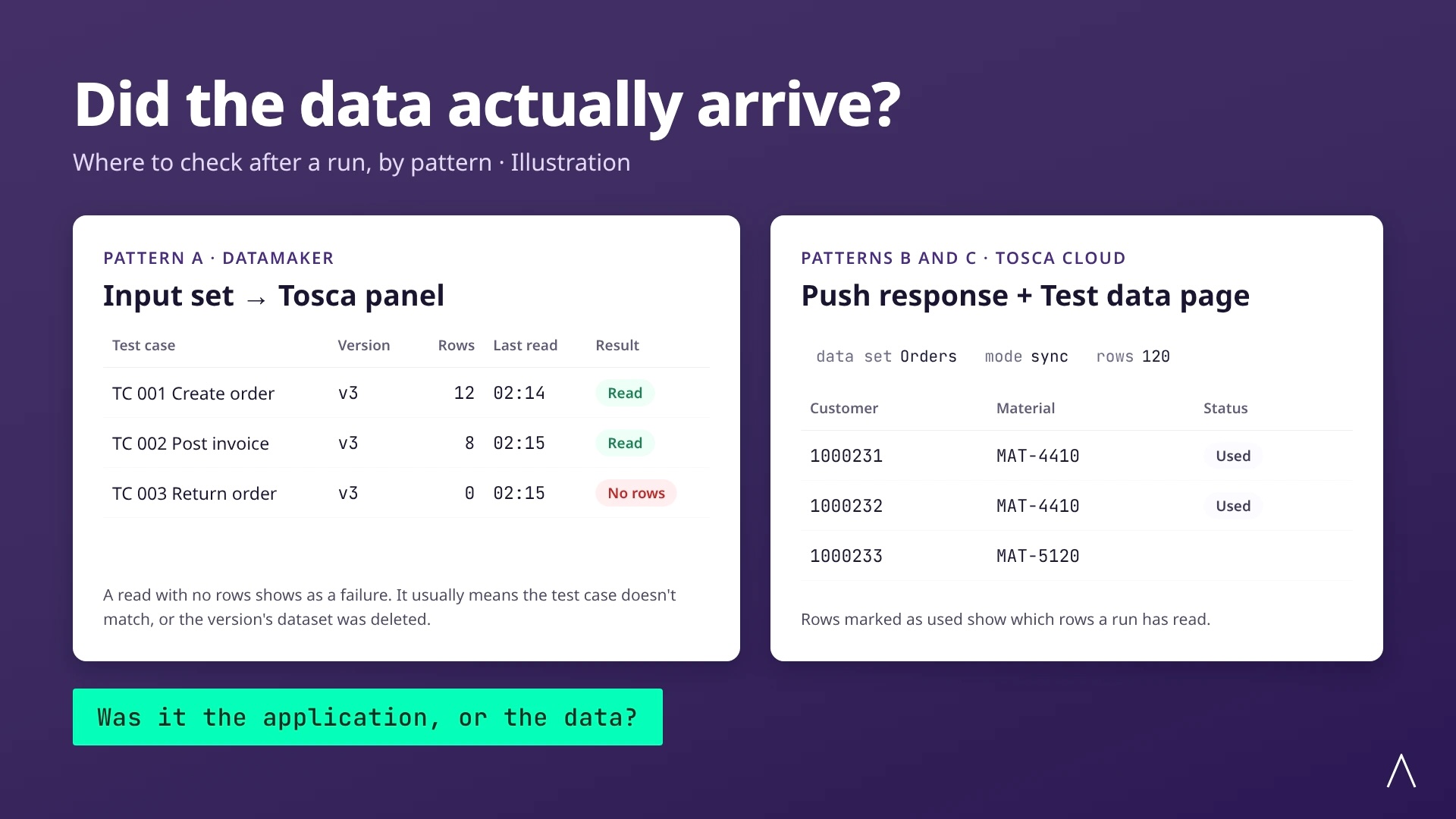
A green setup step does not prove a test read what you think it read. For Pattern A, the input set's Tosca panel shows whether anything has pulled the rows, when, which version, how many rows came back, and whether the read succeeded, per test case. A read that returned no rows is shown as a failure, which usually means a test case that does not match or a version whose dataset was deleted.
For Patterns B and C, the push response reports its outcome and row count, and Tosca Cloud's Test data page shows which rows a run marked as used. Between them you can answer the question every failed nightly run eventually raises: was it the application or the data?
If you run Tosca on-premises
Tosca Commander keeps test data in Test Data Service, which installs with Tosca Server. The standard subset's Test Data Service modules cover the full life of an item: create it, find and lock it, update it, move it to another type as its state changes, and delete it.
Tricentis' own example moves an item from "new car" to "insured car" to "damaged car". TestData - Import items loads CSV, Excel or JSON files into a type. With an HTTPS binding, test cases authenticate through a test configuration parameter named AuthenticationAccessKey. Test Data Service also publishes a Swagger API, which API Scan can load to build messages.
On-premises, DataMaker's Tosca tools cover authoring: listing workspaces, querying objects with TQL, creating supported objects, adding execution entries and checking in changes. Writing rows into Tosca test data is a different matter. DataMaker's push works with Tosca Cloud connections only, and it cannot write into Test Data Service or any other test data service.
What works on both sides today is a file handoff. Export the rows from DataMaker and load them with TestData - Import items. It is a manual step, and it leaves locking and state tracking to Tosca, which already does both well.
Before you rely on it
The Tosca Cloud test data API is not public
Tricentis does not publish an API for Tosca Cloud test data. We use the one the Tosca portal itself uses, so a change on Tricentis' side could break pushes until we update DataMaker. Pattern A does not depend on it.
Keys stored in Tosca are readable
Patterns A and C put a DataMaker key in a request header, which Tosca stores in clear text. Use a read-only key for Pattern A, the narrowest read-write key that works for Pattern C, and rotate both.
Start on a sandbox
Run every write against a sandbox client first, and test that reruns do not duplicate records. Cancelling a scenario does not undo writes it already made, so check the run history before retrying an interrupted one.
Where this leaves Tosca
None of this replaces Tosca's own test data features. Data sets, subsets, consumption and Test Data Service locking are what keep parallel runs from colliding, and they stay in charge. DataMaker fills them with SAP records that exist and agree with each other, at the moment a run needs them. For how this fits into a wider Tosca pipeline, see our guide to SAP continuous testing with Tricentis.
Try it on one test case
Pick one Tosca Cloud test case, one SAP sandbox entity and Pattern A. That is small enough to judge in an afternoon. Talk to us about your Tosca setup.
Sources
- Manage test data, Tosca 2026.1, for the quoted line, state tracking, item types and shared data
- Test Data Service, Tosca 2026.1, for installation, authentication and the Swagger API
- Test Data Service Modules, Tosca, for locking, ReadOnly and Import items
- Manage test data using API Scan, Tosca 2026.1
- Use test data in test cases, Tosca Cloud, for {TDM[...]} syntax, one row per test case and reuse
- Add test data to Tosca Cloud, Tosca Cloud, for data sets and the used status
- Test APIs, Tosca Cloud, for API messages from a specification
- Tricentis Tosca connection, DataMaker documentation
- SAP OData connection, DataMaker documentation
- SAP regression data, DataMaker documentation
- REST API and CI/CD integration, DataMaker documentation